
Desktop workflow
The mental model
Section titled “The mental model”Mewl is easiest to use when you treat it as a runtime cockpit instead of a generic dashboard.
Observedanswers: what is running right now?Managedanswers: what should Mewl control for me?Logsanswers: what just happened, and where did it come from?Portsanswers: what is bound, watched, conflicted, or exposed?Monitoranswers: what is pressuring the host over time?
A practical first session
Section titled “A practical first session”If you are opening Mewl for the first time, this flow works well:
- Start on
Overviewand scan the high-level health cards. - Open
Processesand inspect what is already live on the machine. - Promote only the services you actually want Mewl to manage into
Managed. - Add notes, stop behavior, and restart policy in the managed editor so the definition is explicit.
- Use
LogsandPortsduring troubleshooting instead of guessing from terminal output alone. - Keep
Monitoropen when you suspect resource pressure or runtime spikes.
Observed
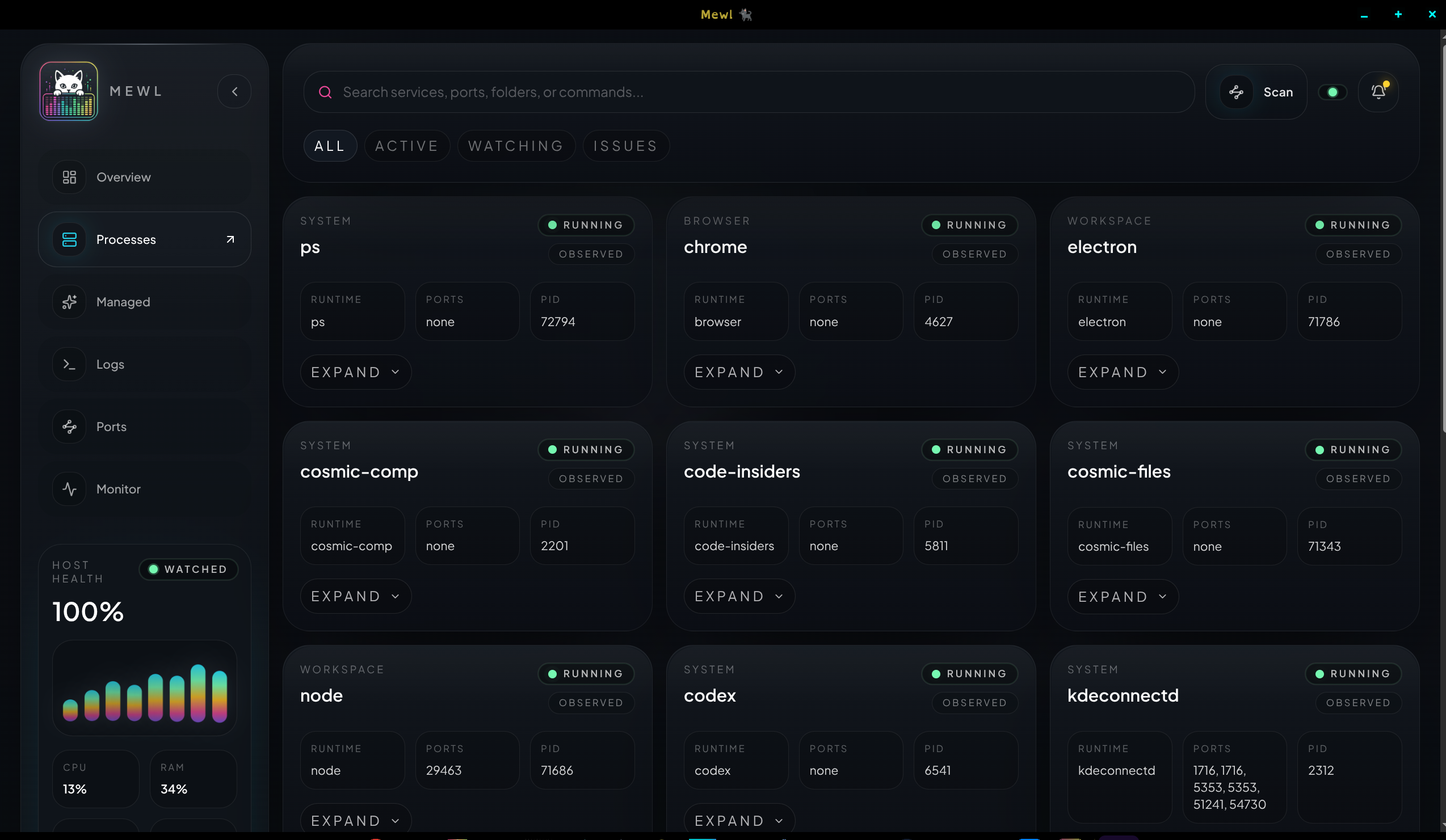
Section titled “Observed”The Processes workspace shows live host processes without pretending Mewl owns them. That means you can inspect, expand, and review them without accidentally turning helper subprocess noise into long-term service definitions.
Managed
Section titled “Managed”Use the Managed workspace for services you want Mewl to own intentionally. These are explicit saved definitions with launch metadata, optional teardown commands, restart policy, notes, and visual tags.
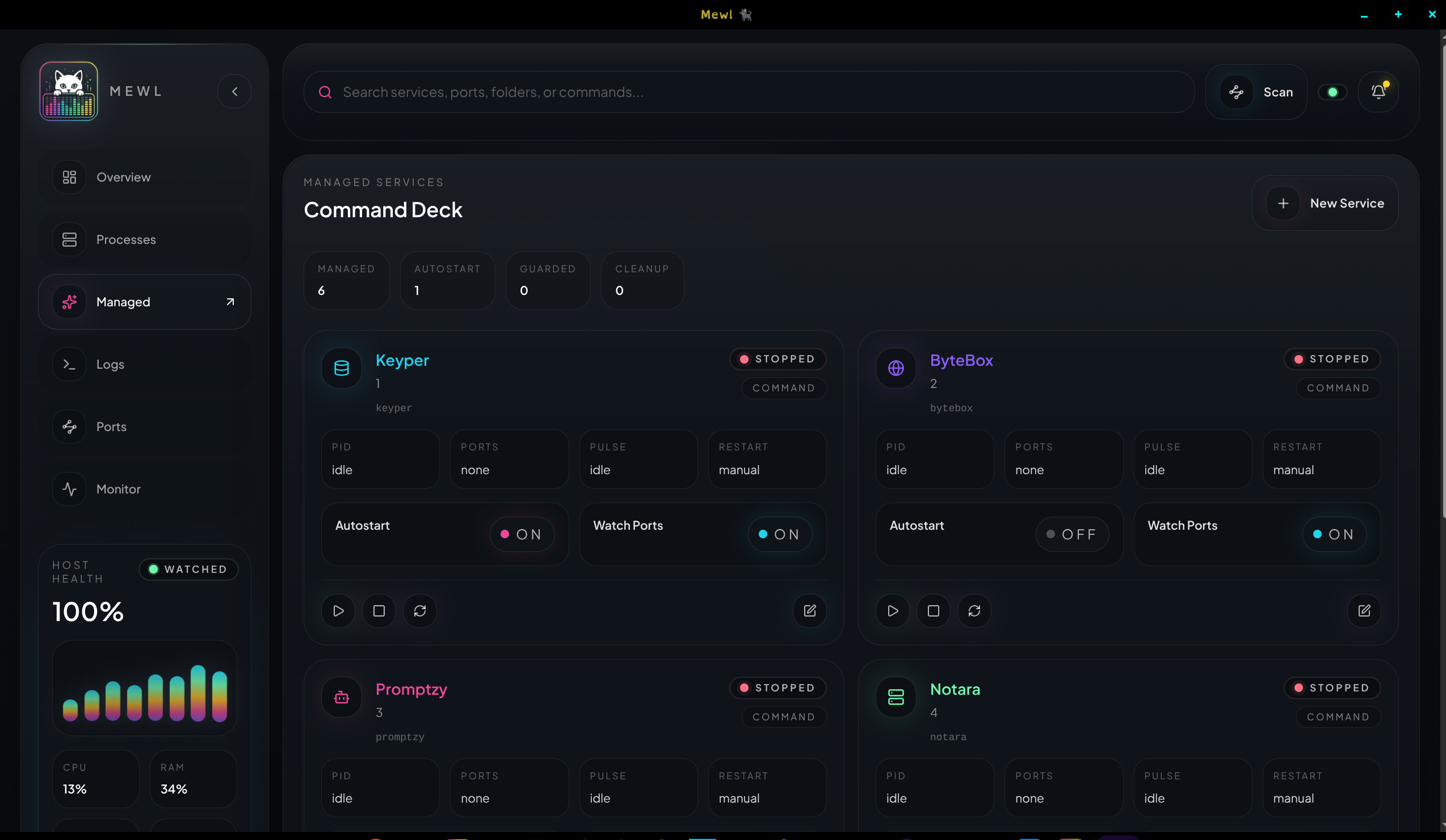
Saved services can be plain commands, direct scripts, or Docker-oriented flows. That flexibility matters because local environments often mix package scripts, shell wrappers, Python workers, and container-backed tools in one stack.
The Logs workspace brings together:
- Mewl internal diagnostics
- managed process stdout and stderr
- Docker-derived container logs where possible
- Linux host logs through journald
The result is one feed that still preserves source, severity, and category so filtering stays fast.
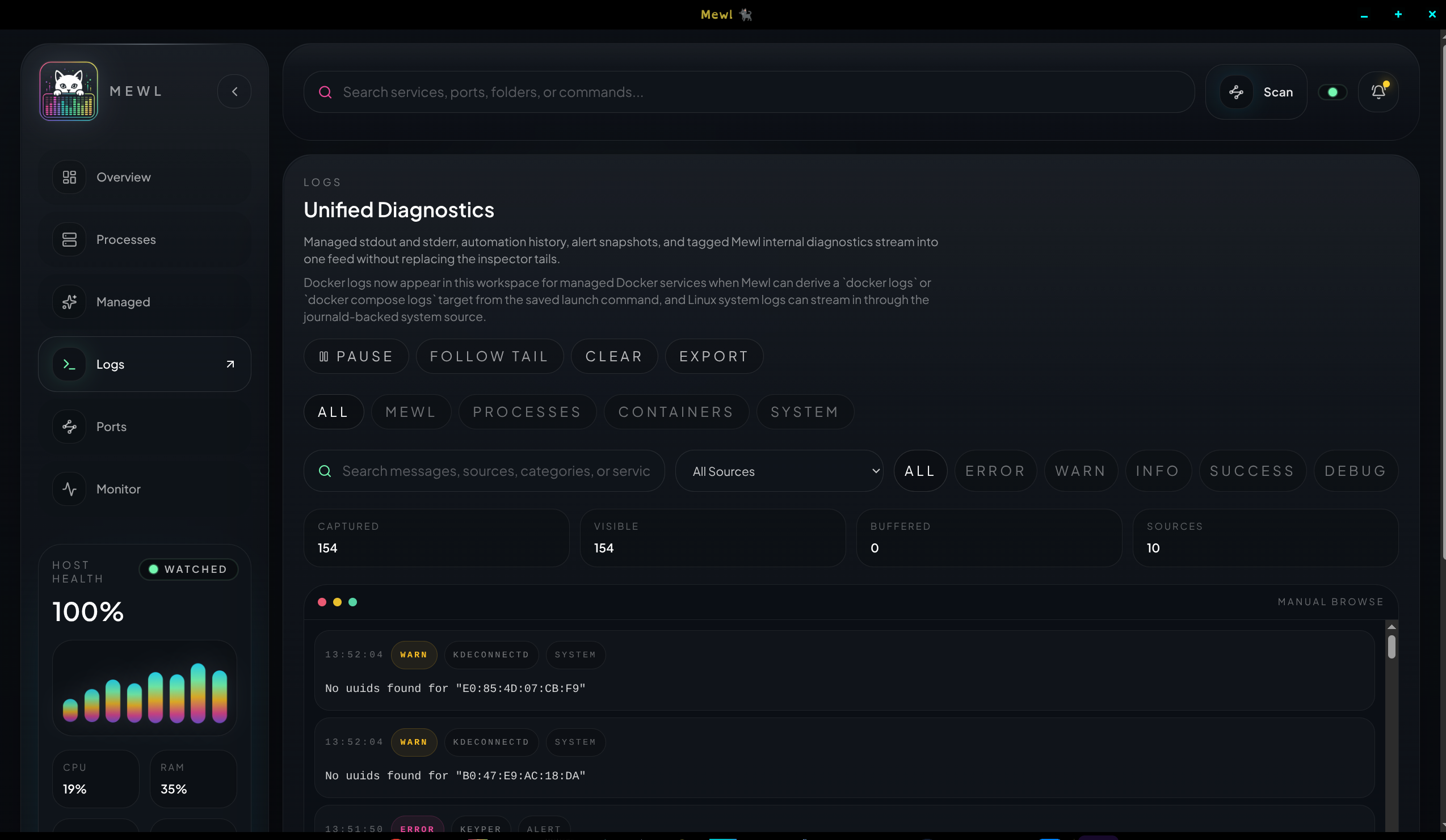
When something breaks, Logs is usually the fastest second stop after Managed.
Ports and monitor
Section titled “Ports and monitor”Ports and Monitor work together. Ports tells you where something is bound and whether a reservation is in conflict. Monitor tells you how hard the host is working across CPU, memory, disk, network, and GPU samples.
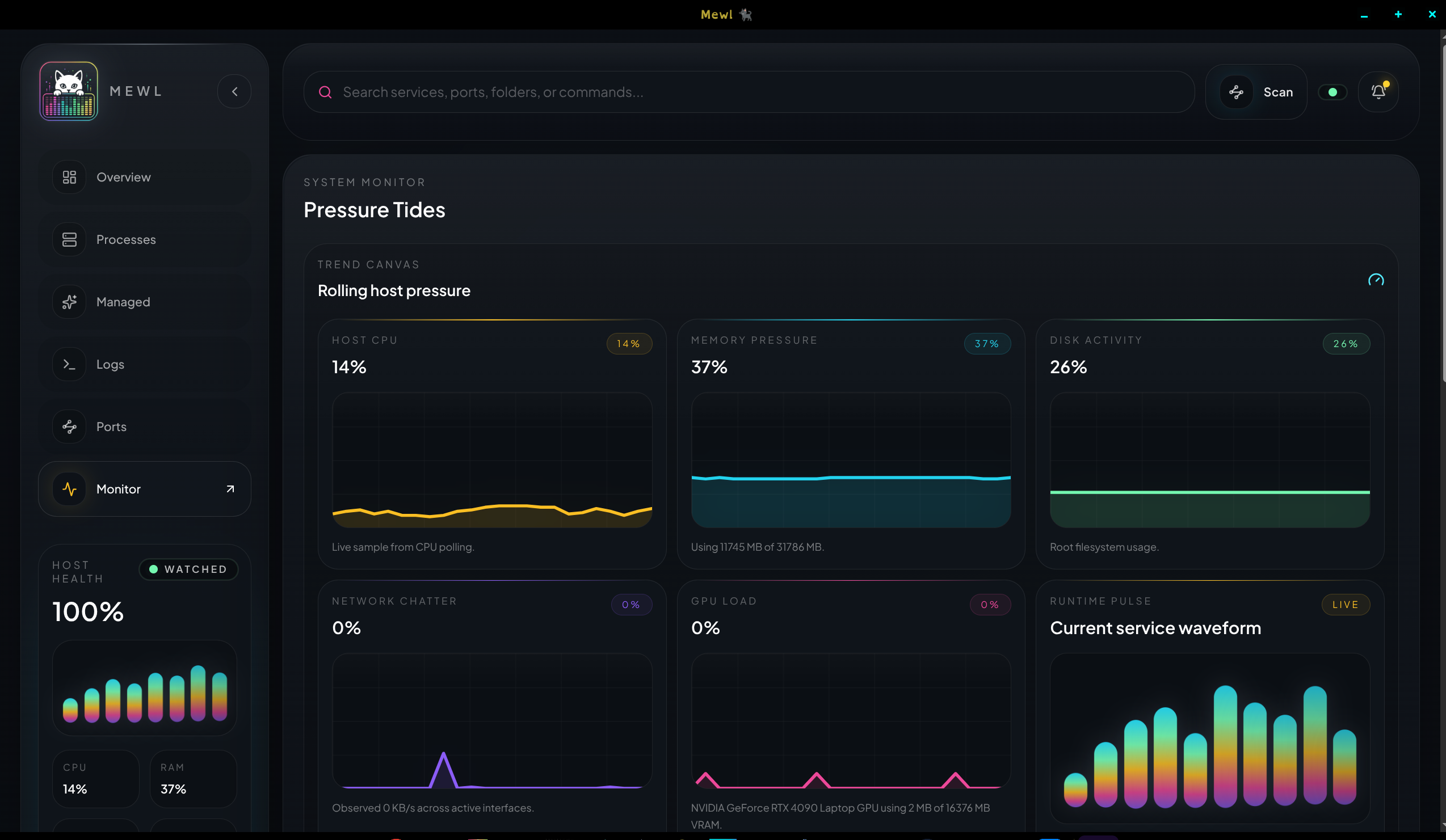
Together, those two views help separate “the command failed to bind” from “the machine is under pressure” without leaving the app.